Reducing Cognitive Complexity in Programming
I spend a lot of time and effort reducing cognitive complexity when I program.
Cognitive complexity is how much you have to think to get a task done. Small details can make a task unnecessarily complex.
For example, finding a snippet of code hidden among many files inside a large directory structure takes effort. Even if the structure is familiar and well designed, the goal is not to navigate through it opening files until you find the code to edit; the goal is simply to edit the code. Anything beyond that is wasted cognitive effort.
Reducing that effort matters to me because it speeds up my work and makes it more enjoyable. On top of that, when other people watch me program, nothing is as tedious as watching me wander through the code until I find what I’m looking for.
Things that reduce cognitive complexity for programmers:
- A well-configured editor: an editor with features like “go to definition” and the ability to switch quickly between open files. Ideally, this should be done with a simple keyboard shortcut, without having to move from the keyboard to the mouse and click on tabs or menus, since every extra action adds complexity. In my case, I use Neovim configured so that, in normal mode, the Enter key jumps to the definition and Backspace returns to where I was.
- Clear error messages: adding the function name or a specific code to logs and error messages makes them easier to locate. That way it’s simpler to search for the message text and find where it happened. This helps a lot, because I don’t need to remember the file name; I go straight to the code that needs to be examined.
- Good names and standardization: coming up with good names for the various parts of the code and standardizing names across team members. While it’s challenging, this practice helps significantly.
- Standardized resources: server names and configurations also need to be standardized. I’ve had trouble understanding what needed to be done because we hadn’t settled on a name for a server. Each time it was called something different: once by the project name, another time by the name of one of the services running on it.
Finding code easily
Many programmers center their work around the text editor, whether using a ready-made IDE like Visual Studio Code or equipping Vi with several plugins, effectively turning it into an IDE.
I prefer a different approach: I treat the terminal as my IDE. It’s responsible for managing files and navigating directories, while the editor handles editing and navigating code that’s already open. For that reason, I don’t use plugins that generate trees for navigation, for example.
Instead, I use scripts like the following:
#!/usr/bin/env bash

RG_PREFIX="rg \
    --color=always \
    --column \
    --follow \
    --glob '!{.git,node_modules}/*' \
    --hidden \
    --line-number \
    --no-heading \
    --smart-case \
    --sort=modified"
INITIAL_QUERY="${*:-}"
IFS=: read -ra selected < <(
    FZF_DEFAULT_COMMAND="$RG_PREFIX $(printf %q "$INITIAL_QUERY")" \
    fzf --ansi \
        --bind "change:reload:sleep 0.1; $RG_PREFIX {q} || true" \
        --delimiter : \
        --disabled \
        --preview 'bat --color=always {1} --highlight-line {2}' \
        --preview-window 'up,60%,border-bottom,+{2}+3/3,~3' \
        --query "$INITIAL_QUERY"
)
[ -n "${selected[0]}" ] && \
    $EDITOR "${selected[0]}" "+${selected[1]}" && \
    echo "${selected[0]}" "+${selected[1]}"
This script uses a combination of utilities (fzf, rg, and bat) to build a tool that lets me inspect multiple files and quickly find the code I’m looking for, with the option of using regular expressions when a plain string isn’t enough.
It lets me preview files quickly without having to load the editor, thereby avoiding unnecessary plugins or leaving files open for no reason. Once the code is found, I just press Enter to open it in the editor.
When I’m done editing, it leaves a log on the screen showing which file was edited and which lines, already in the format expected as parameters for Neovim. That way I have a quick record of which file and which line I was on, and I can get back there fast.
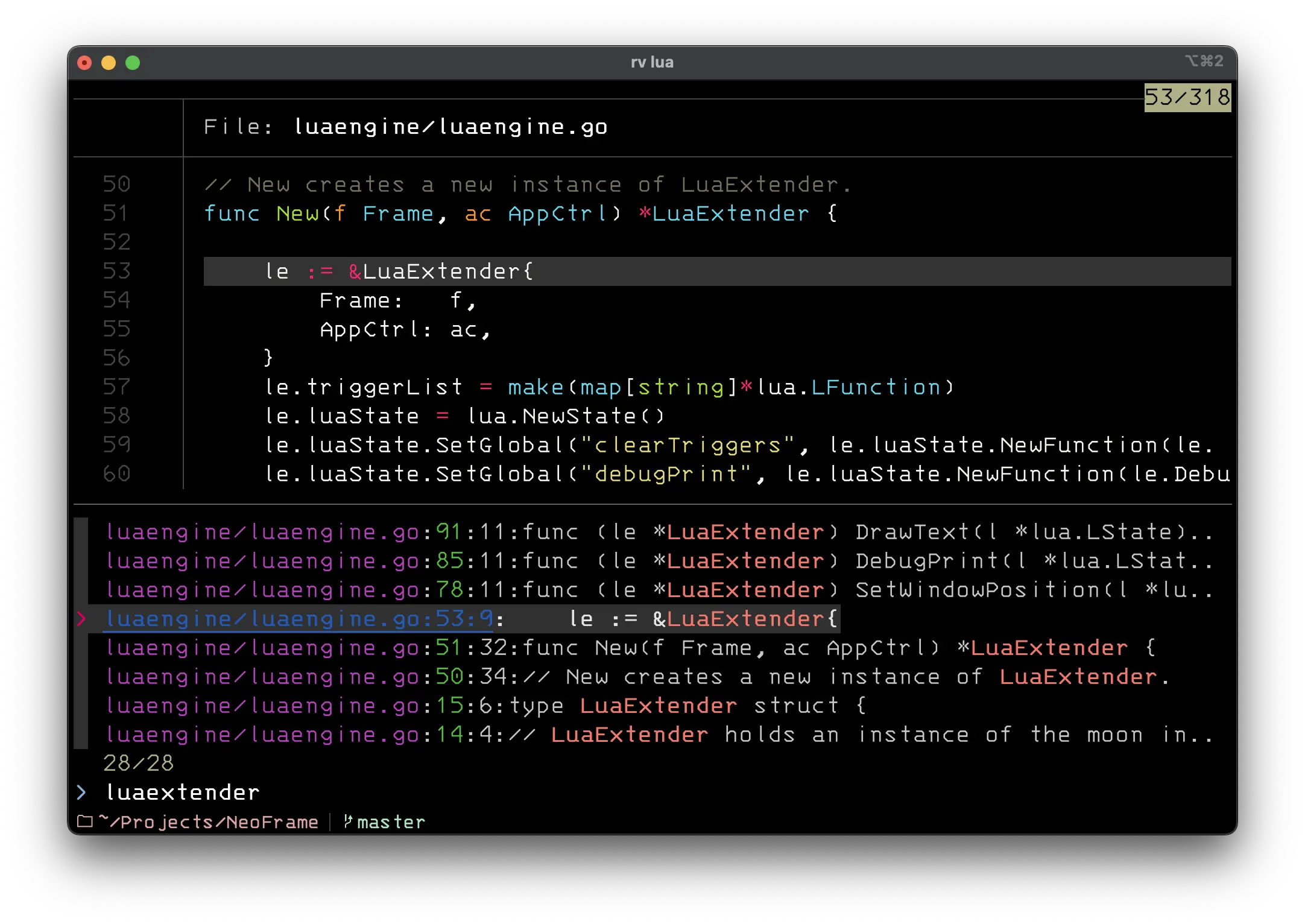
I also use a variation of this script to open files in a loop, letting me edit several files quickly in sequence:
#!/usr/bin/env bash

RG_PREFIX="rg \
    --color=always \
    --column \
    --follow \
    --glob '!{.git,node_modules}/*' \
    --hidden \
    --line-number \
    --no-heading \
    --smart-case \
    --sort=modified"

while true; do
  # Receives the initial query, if any
  INITIAL_QUERY="${*:-}"
  IFS=: read -ra selected < <(
    FZF_DEFAULT_COMMAND="$RG_PREFIX $(printf %q "$INITIAL_QUERY")" \
    fzf --ansi \
        --bind "change:reload:sleep 0.1; $RG_PREFIX {q} || true" \
        --delimiter : \
        --disabled \
        --preview 'bat --color=always {1} --highlight-line {2}' \
        --preview-window 'up,60%,border-bottom,+{2}+3/3,~3' \
        --query "$INITIAL_QUERY"
  )

  # If no file was selected, exit the loop
  [ -z "${selected[0]}" ] && break

  $EDITOR "${selected[0]}" "+${selected[1]}"
  echo "${selected[0]}" "+${selected[1]}"
done
This script is useful when I need to edit several files quickly, such as when I’m refactoring code or fixing a bug that affects multiple files that can be located with the same regular expression. This is fairly common, because often you don’t just want a “find and replace”; there are small differences that need to be adjusted manually in each file.
I have several other scripts and configurations that I use to help reduce cognitive complexity. I’ll write about them in upcoming articles.
These ideas aren’t uniquely mine; you can find plenty of material on cognitive complexity, cognitive load, cognitive effort, and related topics.
It’s also worth reading about cyclomatic complexity to make your code easier to understand.